
How to install an Expert Advisor in MT5 and MT4
Where the EA file goes, how to attach it to a chart, which switches must be on, and what to check when an installed EA still does not trade.

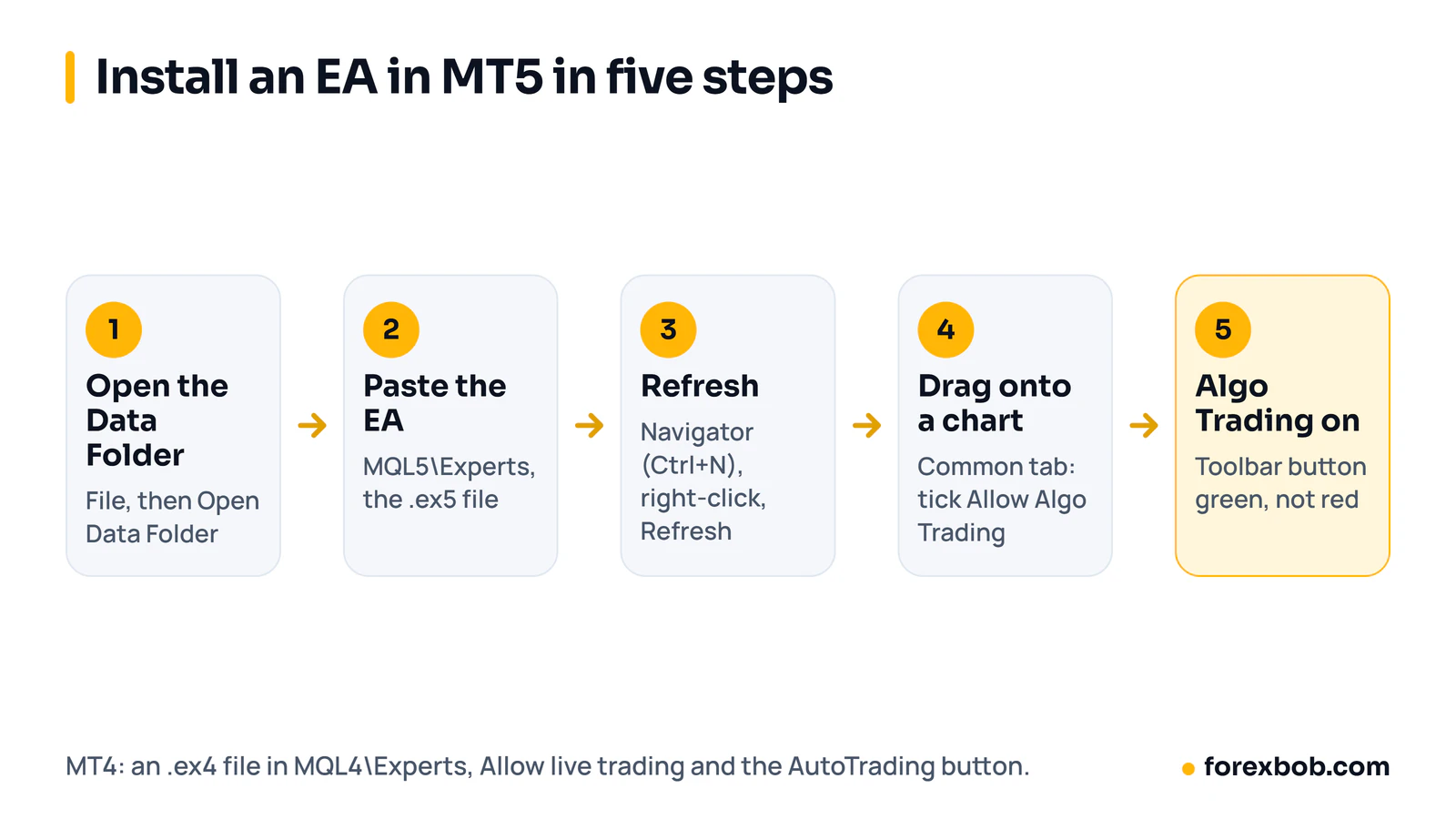
To install an Expert Advisor in MT5, open MetaTrader, click File, then Open Data Folder, and copy the EA file (.ex5) into MQL5\Experts. Refresh the Navigator, drag the EA onto a chart, tick Allow Algo Trading, and switch on the Algo Trading button in the toolbar. MT4 works the same way, with an .ex4 file in MQL4\Experts and a button called AutoTrading.
That takes about two minutes. Most problems come afterwards, when the EA sits on the chart and does nothing. So this guide covers the install step by step for both platforms, then the checks that explain almost every silent EA.
Before you start: the right file for the right platform
An EA comes as one of four file types. .ex5 is a compiled MT5 EA and .ex4 is a compiled MT4 EA. Those are the files you install. .mq5 and .mq4 are source code, which you can read and edit but must compile before use (see the FAQ below).
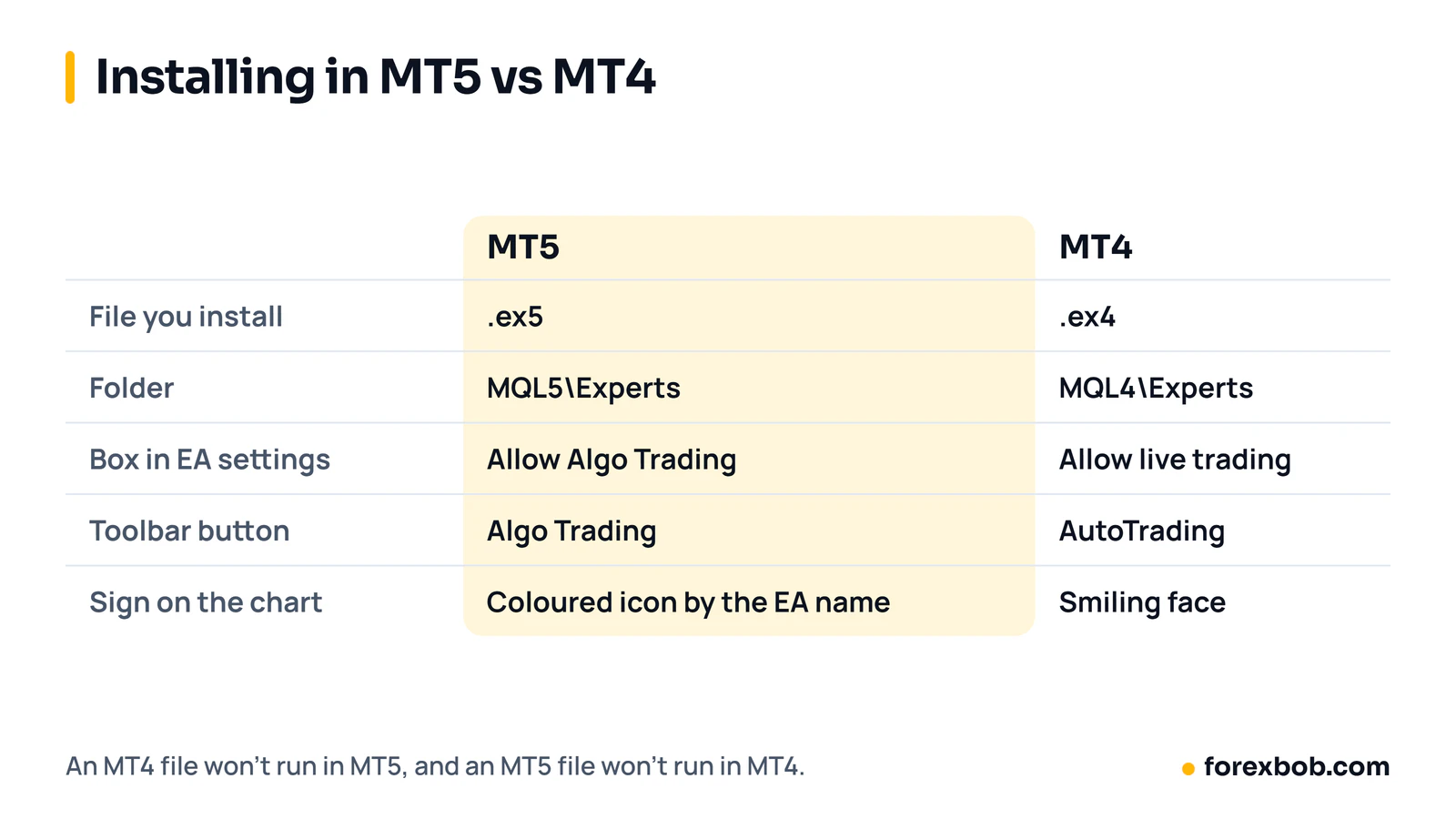
An MT4 file will not run in MT5, and an MT5 file will not run in MT4. Renaming the extension does not help, because the two platforms use different programming languages. If your file does not match your platform, ask the seller or developer for the right version. Our MT4 vs MT5 comparison explains why a port is a rewrite, not a conversion.
If the EA came with extra files, keep them together. A custom indicator the EA reads goes in the Indicators folder, a library (.dll) goes in Libraries, and a settings file (.set) goes in Presets. All three folders sit next to Experts.
How to install an EA in MT5, step by step
- Open MetaTrader 5 and log in to the account the EA will trade. Start with a demo account if you have never run this EA before.
- Click File, then Open Data Folder. A file window opens.
- Open the MQL5 folder, then Experts. Paste the .ex5 file here. You can make a subfolder, such as the developer's name, if you run several EAs.
- Back in MetaTrader, open the Navigator with Ctrl+N. Right-click Expert Advisors and choose Refresh. The EA now appears in the list. If it does not, close and reopen MetaTrader.
- Open a chart of the symbol and timeframe the EA is built for. The EA's guide should say which ones.
- Drag the EA from the Navigator onto the chart, or double-click it. A settings window opens.
- On the Common tab, tick Allow Algo Trading. Tick Allow DLL imports only if the developer says the EA needs it.
- On the Inputs tab, set the risk and other settings, or click Load to use a .set file. Click OK.
- Make sure the Algo Trading button in the top toolbar is on (green), not off (red).
The EA's name now shows in the top-right corner of the chart. The small icon beside it is coloured when the EA may trade and grey when trading is blocked.
How to install an EA in MT4
The MT4 steps are the same with three changes. The folder is MQL4\Experts and the file is .ex4. In the EA's settings window, the box on the Common tab is called Allow live trading. And the toolbar button is called AutoTrading.
MT4 also shows the EA's status as a face in the top-right corner of the chart. A smiling face means the EA may trade. A frowning face means live trading is off, either in the EA's settings or on the AutoTrading button.
Why the Data Folder matters
The most common install mistake is copying the EA into the folder where MetaTrader was installed, usually under C:\Program Files. On a normal Windows install, MetaTrader keeps its working files somewhere else, inside your user profile, and it never looks in the Program Files copy. The EA never appears in the Navigator, and nothing explains why.
File, then Open Data Folder always opens the folder the terminal actually uses. Use it every time, including on a VPS. If you run two terminals, from two brokers for example, each has its own data folder, so install the EA in each one you want it to run in.
Installing an EA you bought
If you bought the EA in the MetaTrader Market, you do not copy any file. It installs itself from the Market tab in the terminal's Toolbox and appears in the Navigator under Expert Advisors, in a folder called Market.
EAs bought directly from a developer usually arrive as an .ex5 or .ex4 file with a guide, and often with a licence that works only on one trading account number. Install it with the steps above on the account named in the licence. If you change account, ask the seller to move the licence before you expect the EA to trade.
The switches that stop an EA trading
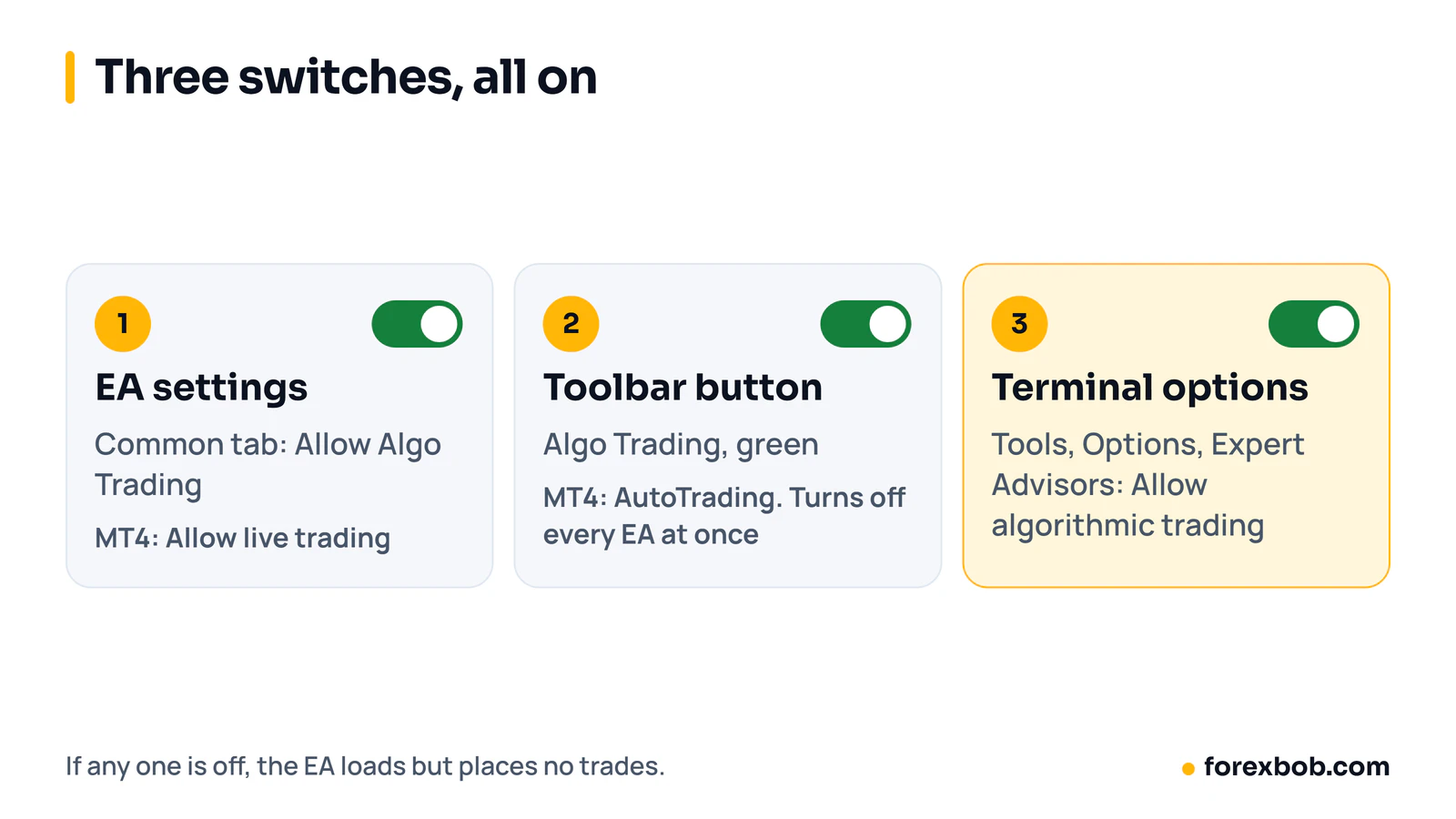
An installed EA needs three permissions at once. If any one is off, the EA loads but places no trades:
- In the EA's own settings: Allow Algo Trading in MT5, or Allow live trading in MT4. Right-click the chart, choose Expert list, select the EA and click Properties to check it.
- On the toolbar: the Algo Trading or AutoTrading button. This one switches off every EA in the terminal at once.
- In the terminal options: Tools, Options, then the Expert Advisors tab. Allow algorithmic trading must be ticked.
That last tab hides a trap in MT5. It has options that switch algo trading off automatically when you change account, change profile, or change a chart's symbol or timeframe. They are safety features, and many traders leave them on. But if you log in to another account to check something and come back, the Algo Trading button may be off.
How to check an installed EA is working
Do not assume the EA is running because it sits on the chart. Open the Toolbox with Ctrl+T and read two tabs.
The Experts tab shows messages from the EA itself: that it loaded, the settings it read, the orders it sent and any errors it hit. The Journal tab shows what the terminal did: logins, disconnections and rejected orders. Between them, they explain almost every EA that should trade and does not.
A good first test is a demo account during market hours, on the chart the EA was built for. Some EAs trade only once or twice a week, so silence for a day is not always a fault. Check the EA's guide for how often it should trade. If it should have traded and the Experts tab shows nothing, use the list below.
When an installed EA does not trade
- The EA is not in the Navigator. It was copied to the wrong folder, or it is for the other platform. Copy it again through File, Open Data Folder, and check the file extension.
- The EA loads, then disappears from the chart. Read the Experts tab. A missing indicator, a failed licence check or a blocked DLL is the usual cause.
- The Journal shows that algo trading or AutoTrading is disabled. One of the three switches above is off.
- "Trade is disabled" or "Trade disabled". You may be logged in with the investor (read-only) password, which can view an account but not trade it. Log in again with the main password. This error can also mean the broker has closed trading on that symbol, for example outside its trading hours.
- "Invalid stops". The stop loss or take profit is too close to the price for your broker's minimum distance. Widen it in the inputs, or ask the developer.
- "Not enough money". The position size needs more margin than the account has free. Lower the risk or lot size setting. Our guide to leverage and margin explains the link.
- No errors, no trades, on the wrong symbol name. Many brokers add a suffix to symbol names, such as EURUSD.m or XAUUSDm. An EA that looks for EURUSD by name may never find it. Check the inputs for a symbol setting, or ask the developer.
Running an EA on more than one chart or account
Each chart holds one EA. To run two EAs on the same pair, open a second chart of that pair. To run the same EA on several pairs, attach it to one chart per pair, each with its own settings. Check the EA's guide first, because some EAs are built to trade several pairs from a single chart.
Never run the same EA on the same account from two places, such as your laptop and a VPS. Both copies will act on the same signals and can open duplicate trades. If you move an EA to a VPS, remove it from your home terminal first. Our guide to a forex VPS for EAs covers that setup.
Mistakes after installing an EA
- Starting on a live account before checking the EA on demo.
- Leaving the risk input at the developer's default without reading what it means.
- Closing MetaTrader or letting the computer sleep, which stops the EA.
- Attaching the EA to the wrong timeframe, so it reads different candles from the ones it was tested on.
- Running two EAs on one pair without checking whether they share a magic number, the ID an EA uses to recognise its own trades.
- Changing settings after every losing trade, so the EA you tested is not the EA you are running.
FAQ
How do I install an .mq5 or .mq4 file?
Copy it into the Experts folder in the same way, then open it in MetaEditor (press F4 in MetaTrader) and click Compile. Compiling creates the .ex5 or .ex4 file next to it. If the compile shows errors, the code needs fixing before it can run.
Can I install an EA in MT5 on a Mac?
Yes. The steps are the same in the macOS version of MT5. File, then Open Data Folder, opens the MQL5 folder in Finder, and you copy the EA into Experts from there.
Can I install an EA on the MT5 mobile app?
No. The MetaTrader apps for iPhone and Android do not run Expert Advisors. An EA needs the desktop terminal, on your own computer or on a VPS. You can still watch the trades it places from the mobile app.
Does the EA keep running when I close MetaTrader?
No. An EA runs only while its terminal is open and connected. When you reopen MetaTrader, EAs attached to charts usually load again, but check that the Algo Trading button is on and the Experts tab shows the EA loaded.
How do I remove an EA from a chart?
Right-click the chart, choose Expert list, select the EA and click Remove. Open trades stay open, and their stop loss and take profit stay with your broker. Any management the EA did, such as a trailing stop, stops with it.
If you have a strategy you trade by hand and want it as an EA, our custom EA development service delivers each EA with its settings and a short install guide for your platform. Before you trust any EA with real money, run it through the MT5 Strategy Tester and read how to judge an Expert Advisor.
Keep reading: what an Expert Advisor is, forex VPS for EAs and the MT5 Strategy Tester guide.
Risk note: trading forex carries a high level of risk and may not be suitable for everyone. This article is for education only and is not financial advice.
Have a strategy you want automated?
We turn trading rules into tested Expert Advisors for MT4 and MT5. Tell us how you trade and we'll send a specification and a quote.
More articles

Supply and demand trading: how to mark zones, and what testing shows
How to find supply and demand zones, draw them, enter and place stops. Then what happened when we tested a zone strategy on seven years of EUR/USD.
Read article
Forex risk management: the complete guide
Everything that decides how much you can lose, in one place: risk per trade, sizing, stops, leverage, correlated trades, drawdown limits and the extra risks of EAs.
Read article
Forex prop firms explained: funded accounts, the rules and using EAs
What prop trading is, how forex funded account challenges work, the drawdown rules that end most attempts, what firms allow with EAs, and the maths behind passing.
Read article